Reviewing AI Changes
Last updated
Inline Suggestions (Tracked Changes)
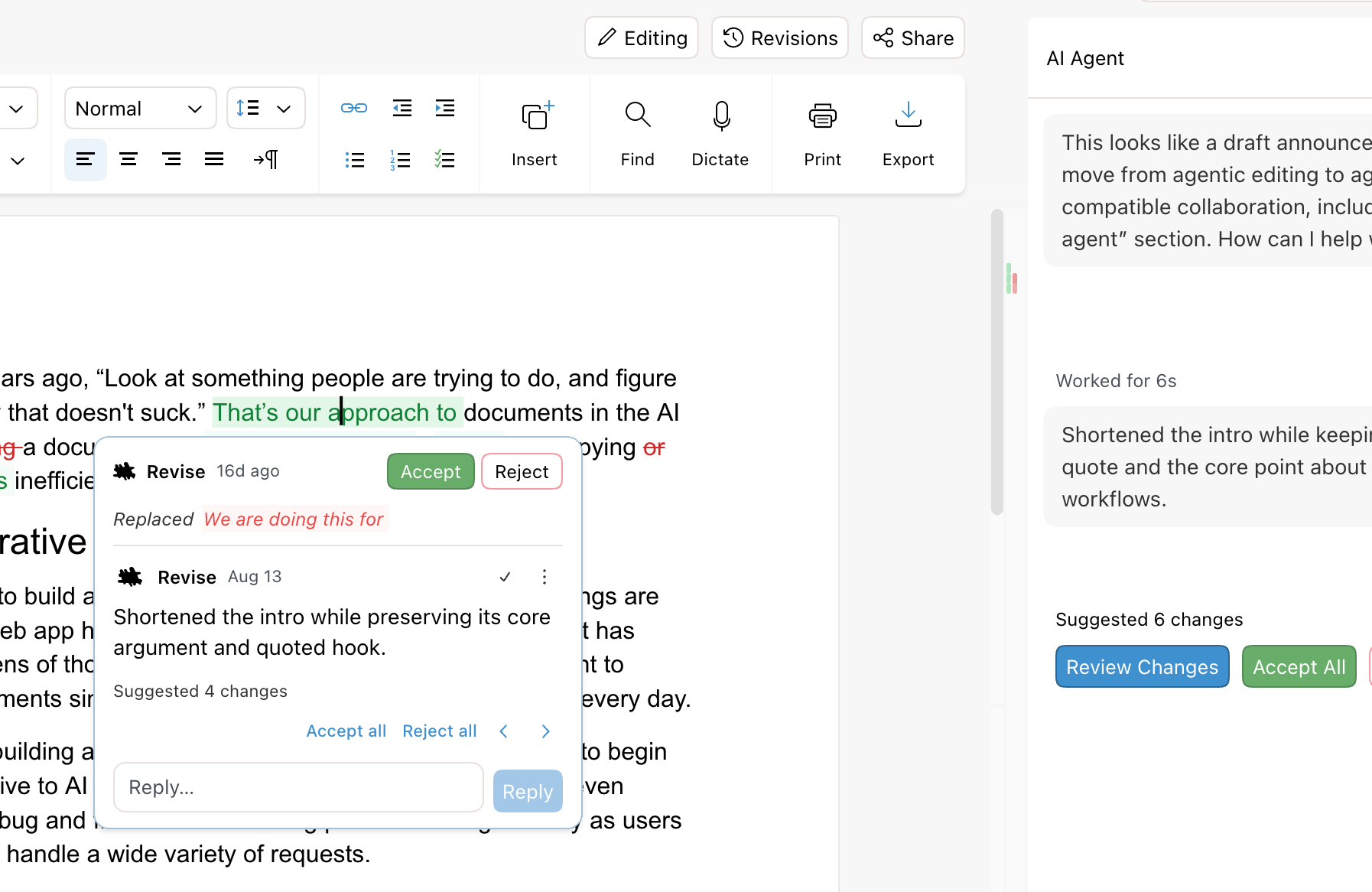 A proposed change shown as a diff
When the agent reviews and edits your document, every change is proposed - never applied automatically. Additions show in green and removals in red, so you can see exactly what the agent wants to do before anything becomes permanent. And when feedback fits better than an edit, the agent can leave a comment instead - a note anchored to your text that changes nothing until you act on it.
Accepting & Rejecting
Click directly on a change in the document to accept or reject it on its own. To handle everything at once, use the and controls. Hovering over them previews the result in the document before you commit.
Not ready to decide? A suggestion doesn't have to be resolved on the spot - choose Comment on it instead to start a thread anchored to that change, and settle the question with your collaborators (or the agent) before accepting or rejecting.
Comments
Comments are the other half of reviewing: feedback that's anchored to your text without changing it. Select any text and choose Comment from the right-click menu (or the comment button that appears in the margin) to start a thread. Threads live in the margin beside the text they refer to - reply to keep the discussion going, and Resolve a thread when it's settled (resolved threads stay available, and can be reopened).
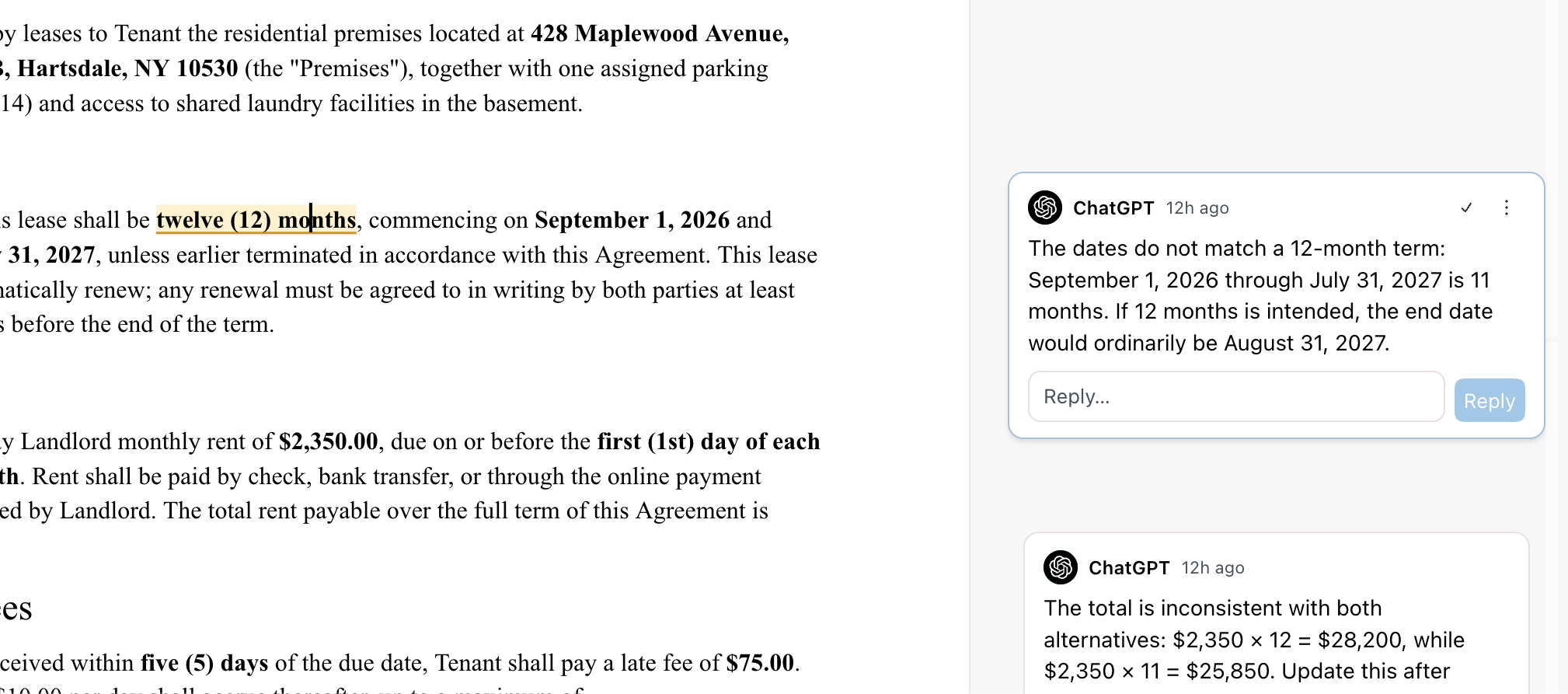 Margin comments left on a Revise document
The agent participates in comments, too. Mention it in a comment or reply and it joins the thread: it answers questions in place, and when the fix calls for an actual edit it proposes suggestions linked to the thread - you can accept or reject them right from the thread card, or step through them in the document. On a private document that only you can open, you can skip the mention: new comments go to the agent automatically.
Comments even work with our MCP server: you can ask external AI apps like ChatGPT or Claude to mark up your document with comments!
Review Mode
For larger sets of edits, turn on Review mode to step through changes one at a time. Revise jumps to each change so you can accept or reject it, then moves to the next. With auto-advance on, it automatically moves to the next change after each decision so you can fly through a review.
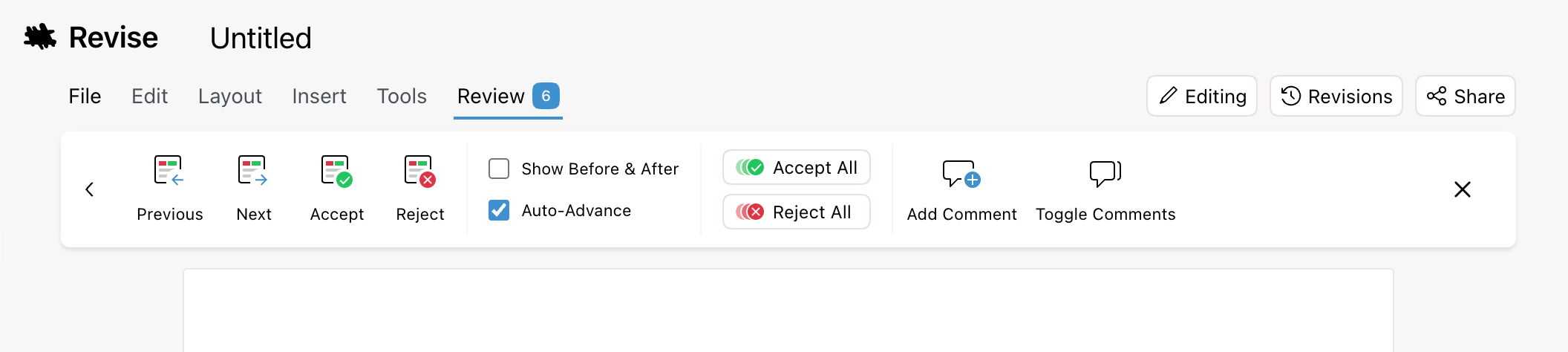 You can turn on Review mode by clicking "Review" in the system menu
Decision History
As you accept and reject, the chat keeps a record - for example "3 changes accepted." Click one of these entries to revisit exactly which edits it refers to.
Word Tracked Changes
Revise suggestions are the same thing as Word's tracked changes, and they translate in both directions. Import a .docx with redlines and each one arrives as a reviewable suggestion - with the original author name, date, and revision identity intact. Export a document with pending suggestions and they come out as native Word tracked changes, ready for a Word user to accept or reject. So an AI edit proposed in Revise can be reviewed in Word, and a colleague's Word redline can be reviewed in Revise.
Revision types that survive the round trip:
| Revision type | Notes |
|---|---|
| Insertions | Proposed text, shown in green until you decide. |
| Deletions | Removed text stays visible in red until resolved. |
| Moves | Word's linked moves import as a single suggestion with a source and a destination - accepting one half resolves both. An unpaired move half falls back to a plain insertion or deletion, just as Word does. |
| Formatting changes | Bold, color, font, and other run formatting revisions - rejecting restores the prior formatting. |
| Paragraph splits & merges | Tracked paragraph marks (an inserted or deleted pilcrow) import as pending split or merge suggestions. |
| Paragraph property changes | Alignment, indentation, spacing, and style revisions - rejecting reverts to the prior properties. |
| Table revisions | Inserted and deleted rows and cells, tracked cell merges and splits, and table, row, and cell property changes. |
| Layered revisions | Text inserted by one author and then deleted by another keeps both layers, like Word's markup view. |
Comments make the same round trip. Word comments arrive as live threads in the margin - anchored ranges, replies, and resolved state included - and threads started in Revise (by you or the agent) export as native Word comments. A comment anchored to tracked-inserted or tracked-deleted text keeps its anchor, and tracked changes inside content controls are preserved too. For the full picture of what survives a .docx round trip, see Word Compatibility.